
Automation How-Tos
How to Automate Accounting for Small Business
The short answer: Automate small-business accounting by making a cloud tool like QuickBooks Online or Xero your single source of truth, then connecting bank feeds, receipt capture (Dext or Hubdoc), recurring invoices with payment reminders, and payroll. Let the software categorise, reconcile and file the routine work, but keep a human, ideally your accountant, reviewing the numbers each month. Automate the data entry, not the judgement.
Bookkeeping is the classic “boring stuff” that quietly eats an evening a week: typing receipts into a spreadsheet, chasing late invoices, matching payments against the bank statement, and hoping the VAT return adds up. The good news is that almost all of that data entry can run on its own. Modern cloud accounting tools were built to pull transactions in automatically, read receipts, send invoices and reconcile most of your ledger without you touching a keyboard.
This guide walks through a practical, safe setup for a small business or sole trader. The goal is not to remove yourself entirely, it is to remove the repetitive typing so your involvement shifts from data entry to a quick, confident review. We will be clear throughout about what is genuinely safe to automate and what still needs a human, or an accountant, to sign off.
Before you start
A few things make this far smoother. First, keep your business banking separate from personal spending; automation falls apart the moment the two are mixed. Second, gather your logins for your bank, any payment processors (Stripe, PayPal, GoCardless) and your payroll details. Third, decide who your reviewer is: if you have an accountant or bookkeeper, tell them you are moving to a cloud tool so they can connect as an advisor. Automating the flow of financial data is one of the highest-value repetitive tasks you can automate in a small business, so it is worth setting up properly once.
Step 1: Choose your accounting platform
Everything else plugs into your accounting platform, so choose it first. For most small businesses that means QuickBooks Online or Xero; both offer bank feeds, invoicing, receipt capture, reporting and a wide app ecosystem. FreeAgent and Wave are lighter alternatives worth a look for freelancers and very small firms.
Pick based on three things: your region and tax rules (make sure it handles your VAT, GST or sales tax and any digital filing requirements), the tools it integrates with, and whether your accountant already works in it. That last point matters more than feature lists. An accountant fluent in your platform will spot problems faster and set up smarter rules from day one.
Resist the urge to over-buy. Start on a plan that covers bank feeds, invoicing and reporting, then upgrade when payroll or multi-currency actually becomes a need.
Step 2: Connect bank feeds and set reconciliation rules
A bank feed is a secure, read-only connection that imports your transactions automatically, usually once or twice a day. Connect every account the business uses: current account, savings, and any credit or debit cards. This single step ends manual statement entry, which is where most bookkeeping hours quietly disappear.
Once transactions are flowing, set up bank rules. A rule tells the software how to treat recurring transactions: for example, “any payment to Amazon Web Services is a software expense, coded to that account, with 20% VAT.” After a few weeks the software recognises most of your regular income and outgoings and suggests the coding automatically.
Reconciliation, matching what the software thinks happened against what actually cleared the bank, then becomes a case of confirming green matches rather than typing anything. This is safe to automate for routine, repeating transactions. Keep a manual eye on anything unusual: large one-off payments, transfers between accounts, refunds, and anything the software flags as “unmatched”.
Step 3: Automate receipt and bill capture
Bank feeds tell you money moved; receipts and bills tell you why, and that evidence is what keeps you compliant at tax time. Tools like Dext or Hubdoc (Hubdoc is bundled with many Xero plans) automate this capture.
Set them up so paperwork arrives three ways without manual typing:
- Photograph a receipt in the mobile app the moment you get it.
- Forward supplier email invoices to a unique address that files them automatically.
- Auto-fetch recurring bills from suppliers like your phone or utility provider.
The tool reads each document, extracts the supplier, date, amount and tax, then pushes a coded transaction into your accounting platform with the image attached. When the bank feed shows the matching payment, the two line up and reconcile cleanly, with the receipt permanently stored against the entry.
This solves the shoebox-of-receipts problem and means you are never hunting for proof of a purchase during an audit. The one habit to build: capture receipts as they happen rather than in a monthly batch, so nothing goes missing.
Step 4: Set up recurring invoices and payment reminders
Getting paid is the part of accounting most worth automating, because slow invoicing directly slows your cash flow. If you bill clients the same amount on a regular cycle, set up recurring invoices that generate and send themselves, weekly, monthly or whatever your terms are.
Then switch on automated payment reminders (often called invoice chasing). The software emails a polite nudge on a schedule you set: a few days before the due date, on the day, and at intervals after. Add an online payment link (via Stripe, PayPal or GoCardless) so clients can pay in a couple of clicks, and enable Direct Debit for regular clients so payment is collected automatically.
Together these close the loop: the invoice goes out, the reminders chase, the client pays online, and the payment reconciles against the bank feed, all without you sending a single “just checking in” email. Smoother cash collection pairs naturally with a healthier pipeline, so it is worth reading how to automate lead generation so new work keeps feeding the same system.
Step 5: Automate payroll and tax calculations
If you employ people, payroll is repetitive, deadline-driven and error-sensitive, an ideal automation candidate, but one to set up carefully. Most accounting platforms include payroll or integrate with a dedicated tool (Gusto, and the built-in payroll in QuickBooks or Xero, are common choices).
Once employee details, salaries and pension settings are entered, payroll can run on a repeating schedule: it calculates gross-to-net, deducts income tax and national insurance (or your local equivalent), handles pension contributions, generates payslips and, in many regions, files the required reports and payments with the tax authority automatically.
Sales tax and VAT work similarly. With transactions correctly coded, the software totals what you owe and can prepare, and in digital-filing regimes submit, your return.
This is the area where “automate, but verify” matters most. Payroll and tax errors are costly and stressful to unwind. Let the software do the calculation and filing, but review each payroll run before it is finalised, and have your accountant check your first few tax submissions on the new system. Automating the maths is safe; skipping the human check is not.
Step 6: Schedule reports and a monthly review
The final step turns your now-automated data into decisions. Schedule your key reports, profit and loss, cash flow and an aged debtors list (who owes you and how overdue they are), to email themselves to you on a fixed day each month. Many tools also offer live dashboards you can glance at any time.
Automation gets the numbers accurate and on time; it does not tell you what they mean. So book a recurring monthly slot, in your calendar, non-negotiable, to actually read them. Better still, share access with your accountant as an advisor so they can review the same live data and flag issues early rather than nine months later at year-end.
This review is where you catch the things automation cannot: a client who has quietly stopped paying, a subscription you forgot to cancel, margins slipping on a particular service. The system does the counting; you do the thinking.
Putting it together
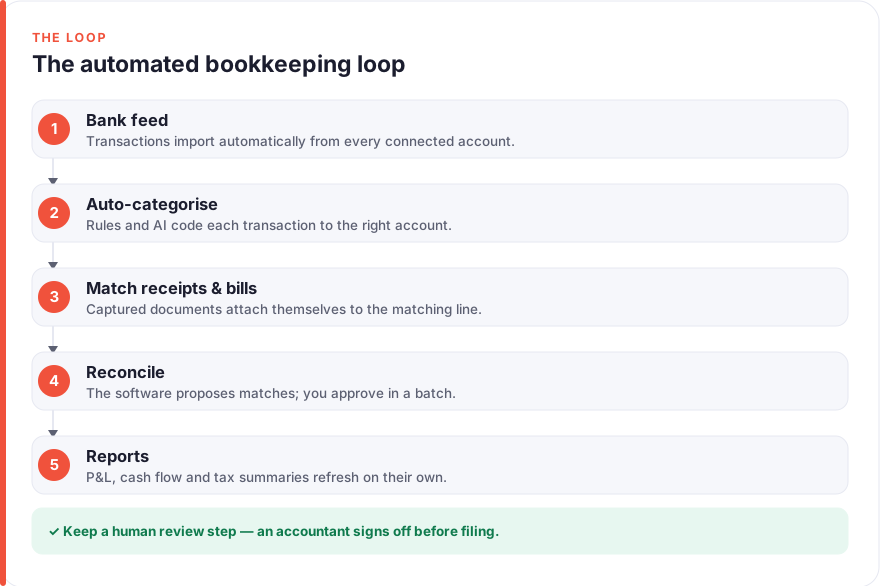
Here is the full loop once it is running. A payment hits your account and the bank feed imports it. A bank rule codes it automatically. A receipt captured in Dext or Hubdoc matches to it, attaching the evidence, and it reconciles with one tap. Your recurring invoices go out and chase themselves until clients pay online. Payroll runs on schedule with tax deducted and filed. And each month, reports land in your inbox ready for a review you actually do.
The through-line is simple: automate the data entry and the routine calculations, keep the judgement and the relationships human. You have not removed yourself from your accounts, you have moved from typing them up to understanding them. If you are assembling a wider toolkit, our roundup of the best AI tools for entrepreneurs covers the systems that sit alongside your accounting stack, and consultants and freelancers may find more tailored picks in our guide to AI tools for consultants.
FAQ
Is it safe to fully automate my accounting without an accountant?
You can automate the data entry, reconciliation, invoicing and reporting safely, but “fully automate” and “no accountant” are two different things. The software handles the routine work reliably; an accountant catches structural issues, optimises your tax position and signs off on filings. Most small businesses do best automating the day-to-day and keeping an accountant for a monthly or quarterly review.
QuickBooks Online or Xero, which should I choose?
Both are excellent and cover the same core ground: bank feeds, invoicing, receipt capture, payroll and reporting. The deciding factors are usually your region’s tax handling, the specific apps you need to integrate, and, most importantly, which one your accountant already uses fluently. Try both on their free trials with a week of your real transactions before committing.
How much does automating my bookkeeping cost?
Expect a monthly subscription for your core platform, plus smaller add-ons for receipt capture and payroll if they are not bundled. It is a running cost rather than a one-off, but it typically replaces many hours of manual work or a larger bookkeeping bill, so weigh it against the time it frees up rather than the sticker price alone.
What accounting tasks should I never fully automate?
Keep a human on anything involving judgement or risk: reviewing payroll before it runs, approving tax submissions, handling unusual or large one-off transactions, and deciding how to chase (or not chase) important clients. Automation is superb at repetitive, rule-based work and unreliable at nuance and relationships.
How long does it take to set all this up?
The core setup, choosing a platform, connecting bank feeds and sending your first automated invoice, takes an afternoon. Bank rules and receipt capture get smarter over the first few weeks as the software learns your patterns. Treat it as a setup you refine over a month rather than a single sitting, and it settles into a genuine time-saver.
Do I still need to keep paper receipts?
Once a tool like Dext or Hubdoc has captured a digital copy attached to the transaction, most tax authorities accept the digital record, but rules vary by country, so confirm your local requirements. In practice, digital capture is more reliable than a drawer of fading thermal receipts. Check with your accountant about retention periods before you shred anything.
If you would like to know more about how we test and write these guides, see our about page.