AI Tool Guides
AI Tools for Designers, Ranked
Some links in our roundups are affiliate links: if you buy through them we may earn a commission, at no extra cost to you. It never changes which tools we recommend or where they rank — we only list tools we would genuinely tell a friend to use.
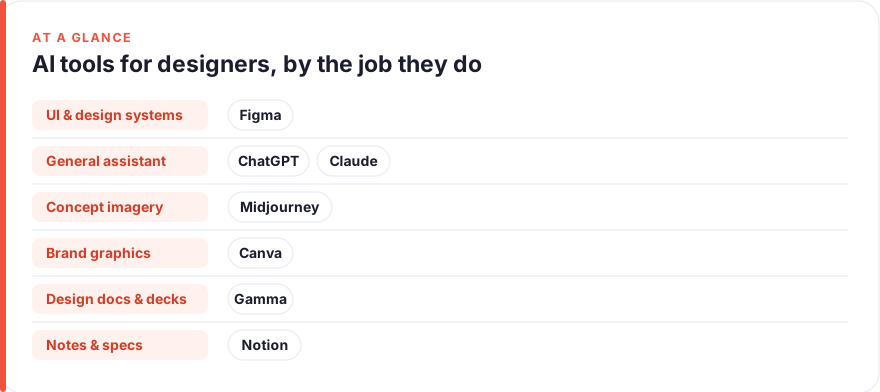
The short answer: For most designers in 2026, the highest-leverage stack is Figma with its AI turned on for the actual UI and product work, a general assistant (ChatGPT or Claude) for briefs, rationale and UX copy, and one image generator (Midjourney) for concepts and art direction. Add Canva, Gamma or Notion only where a specific deliverable — marketing assets, decks, or design docs — is eating your week. Ranked by impact on a designer’s week: Figma, ChatGPT, Claude, Midjourney, Canva, Gamma, Notion.
Design work is a mix of craft and communication: shaping pixels and systems, then arguing for the decisions behind them. AI is now genuinely useful at both edges — the fiddly production tasks and the writing around them — while still being weak at the taste and judgement in the middle. The trap is treating “AI for designers” as one magic button, when in practice it is several narrow tools doing different jobs.
This guide ranks seven tools by how much time and mental load they realistically remove from a working designer’s week, with an eye on visual, product and brand work specifically: interface design, design systems, mockups, concept imagery and the documents that carry a decision. It is deliberately not a video, audio or social-content list — if that is your world, our AI tools for content creators roundup is the better fit. The ranking is opinionated on purpose: adopt the top three and you have covered most of the leverage.
- Figma is the single highest-impact tool because the AI lives inside the canvas where product and UI work already happens.
- A general assistant (ChatGPT or Claude) is the best cheap addition: it handles briefs, UX copy, design rationale and quick front-end snippets.
- Image generators like Midjourney are for exploration and art direction, not finished UI — treat them as a moodboard engine, not a screen designer.
- Canva, Gamma and Notion are deliverable tools: buy one only when marketing assets, decks or design docs become a repeated bottleneck.
- AI is strong on drafts, variations and grunt work, and weak on taste, hierarchy and knowing which option is actually right.
How we picked these
We ranked on one question: how much time and mental load does this tool remove from a typical designer’s week, accounting for what it costs and how likely you are to actually use it. A tool that dazzles in a demo but only helps on a rare deliverable ranks below one that shaves real minutes off work you do every day.
Three things counted heavily. First, fit: does the AI live where you already design, or does it demand a new tab and a new habit. Second, honesty of output: does it produce something you can ship, or a first draft you will heavily rework. Third, breadth against price: whether the paid tier earns its keep over the free tier or a cheaper tool you already own.
Prices are a July 2026 snapshot and change often, especially as AI features get folded into seats you already pay for. Treat every figure as “roughly, per user, before annual discounts and enterprise pricing” and check the vendor before you buy. We have no affiliate relationships with any tool here; see our disclosure and more on how we test tools.
The shortlist
Figma
Best for: UI, product design and design systemsFree · Professional ~$16/seat/mo · Dev seat ~$12/mo
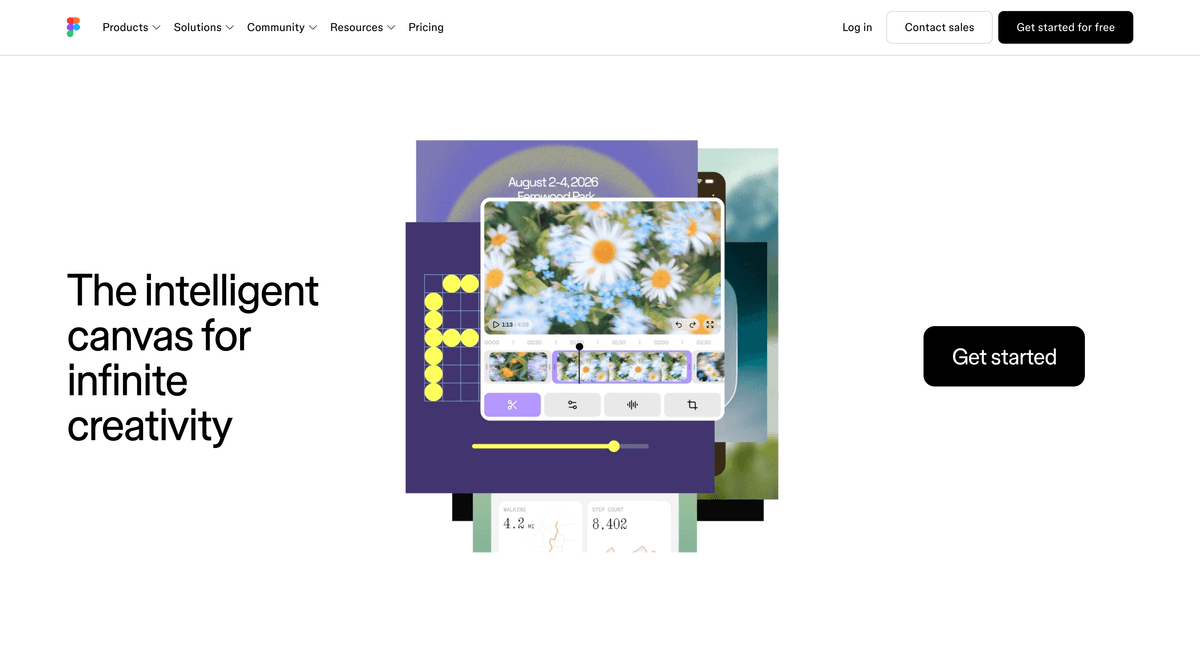
The centre of gravity for most product and UI designers, and the one place where AI genuinely earns its keep because it sits inside the work rather than beside it. Figma’s AI can rough out a first-pass layout, rename messy layers, fill placeholder content and search your files by description, which collectively remove a surprising amount of daily friction. The free Starter plan is usable for individuals and includes a daily AI-credit allowance; paid seats mostly buy collaboration, libraries and more room to work. If you design interfaces, this is the non-negotiable tool.Pros
- AI lives inside the canvas where your product work already happens
- First-draft layouts, layer renaming and content fills remove real busywork
- Design systems, components and dev handoff all in one place
Cons
- Generated layouts are a starting point, not a finished screen
- AI credits are metered, so heavy use can hit plan limits
/assets/screenshots/figma.png ChatGPT
Best for: Briefs, UX copy and design rationaleFree · Plus ~$20/mo · Business ~$20–25/user/mo
The best cheap addition to a designer’s stack because it touches the writing half of the job that design tools ignore. Use it to draft button labels and empty states, pressure-test the reasoning behind a layout before a critique, or generate the HTML and CSS to test a micro-interaction you would rather feel than describe. The free tier is genuinely useful; Plus mainly buys speed, better models and image input for feeding it references. Treat it as a fast, tireless collaborator on everything around the pixels.Pros
- Drafts UX microcopy, empty states and error messages fast
- Turns a rough idea into a structured design brief or rationale
- Handles quick HTML and CSS for prototyping a real interaction
Cons
- Default copy is bland until you feed it your voice and constraints
- Will confidently invent facts, specs and numbers you must check
/assets/screenshots/chatgpt.png Claude
Best for: Design docs, research synthesis and careful UX writingFree · Pro ~$20/mo · Team ~$25/user/mo
A close peer to ChatGPT rather than a rival, and many designers keep both. Claude is the one to reach for when the input is large and the output must stay faithful to it: synthesising a stack of user-research notes into themes, writing a design-system’s usage guidelines, or drafting a long rationale for a leadership review. Its more restrained voice tends to suit product writing that needs to sound like a person, not a brochure. Pick based on which voice you prefer and where your team already has seats — either one covers the thinking-and-writing jobs around your design work.Pros
- Excellent with long inputs: paste research notes and get themes
- Measured, less hyped prose suits UX writing and documentation
- Holds a detailed brief without flattening the nuance
Cons
- Same verification burden as any assistant on facts and specs
- Narrower plugin and integration ecosystem than ChatGPT
/assets/screenshots/claude.png Midjourney
Best for: Concept imagery, moodboards and art directionBasic ~$10/mo · Standard ~$30/mo (no free tier)
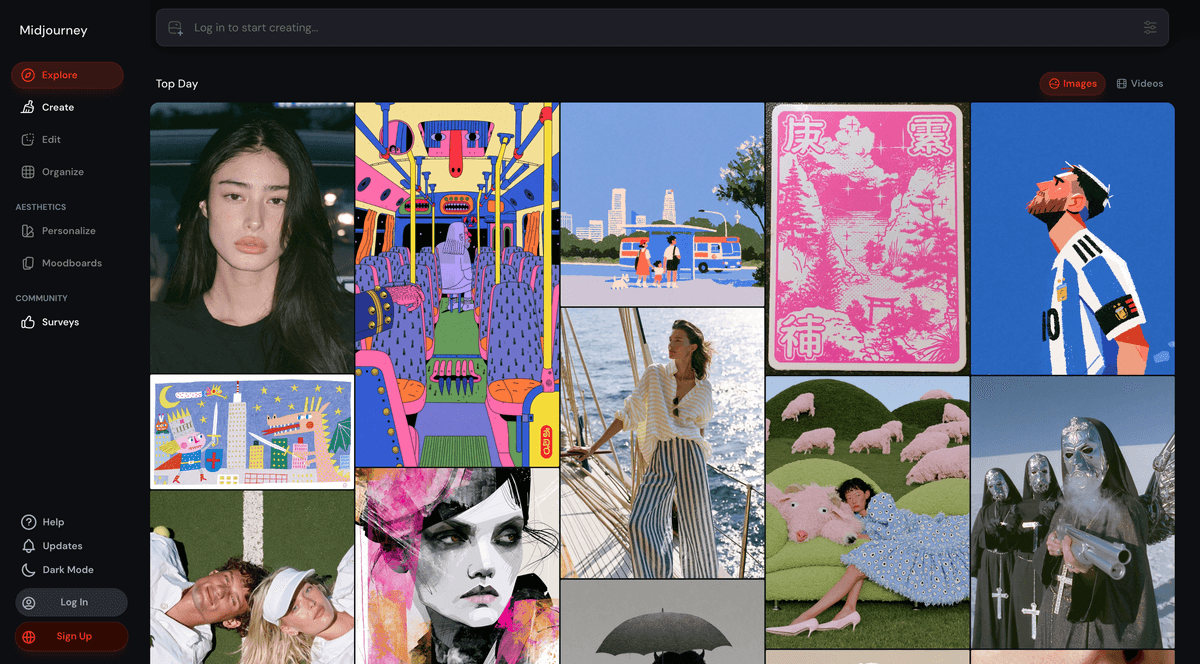
The strongest image generator here, and the right tool for the fuzzy front end of visual and brand work: moodboards, art direction, hero concepts, and pitching a look before anyone commits. The honest boundary is that Midjourney explores directions, it does not design screens — you will bring the result into Figma or a real layout to make it usable. It ranks below the assistants because concept imagery is a periodic job for most product designers rather than a daily one, but where visual direction is your differentiator, nothing else gives you this much range this fast.Pros
- Best-in-class image quality and fine style control
- Ideal for moodboards, hero concepts and brand exploration
- Fast way to visualise a direction before committing to it
Cons
- Output is exploration material, not production-ready UI
- Learning curve on prompting and no free tier to test with
/assets/screenshots/midjourney.png Canva
Best for: Brand and marketing assets at speedFree · Pro ~$15/mo · Business ~$20/user/mo
The practical default for the fast, repeatable brand and marketing deliverables that sit next to real design work: social graphics, one-pagers, event assets and quick mockups. Its AI features — background removal, magic resize, text-to-image — are woven into a tool most teams already know, and its brand kits let colleagues produce on-brand collateral without routing every request through you. The caveat is the same as ever: templates make you blend in, so use it as scaffolding for production work and keep genuine design decisions in Figma. It overlaps with Canva’s use in our content creators list, so you rarely need a separate graphics tool on top.Pros
- Enormous template library and one-click resizing across formats
- AI background removal, magic edits and brand kits built in
- Lets non-designers on the team stay on-brand without you
Cons
- Leaning on templates makes work look like everyone else's
- AI image generation is fine, not best in class
/assets/screenshots/canva.png Gamma
Best for: Design presentations and case-study decksFree (400 lifetime credits) · Plus ~$8–10/mo · Pro ~$15–18/mo
The specialist for the part of design nobody enjoys: packaging the work into something presentable. Gamma turns an outline into a formatted deck fast, which is a real time-saver for portfolio case studies, client pitches and internal design reviews where the story matters as much as the screens. It ranks here because presenting is a recurring but not daily job, and because a designer will always want to hand-tune the result rather than ship the default. Use it to escape blank-slate slide formatting, then apply your own eye to the parts that carry the argument.Pros
- Turns a rough outline into a polished deck in minutes
- Good for pitch decks, case studies and design reviews
- Removes the fiddly slide-formatting tax on presenting work
Cons
- House style can look generic without real customisation
- Free credits are a one-time allotment, not a monthly refresh
/assets/screenshots/gamma.png Notion
Best for: Design docs, specs and system documentationFree · Plus ~$10/user/mo · Business (full AI) ~$20/user/mo
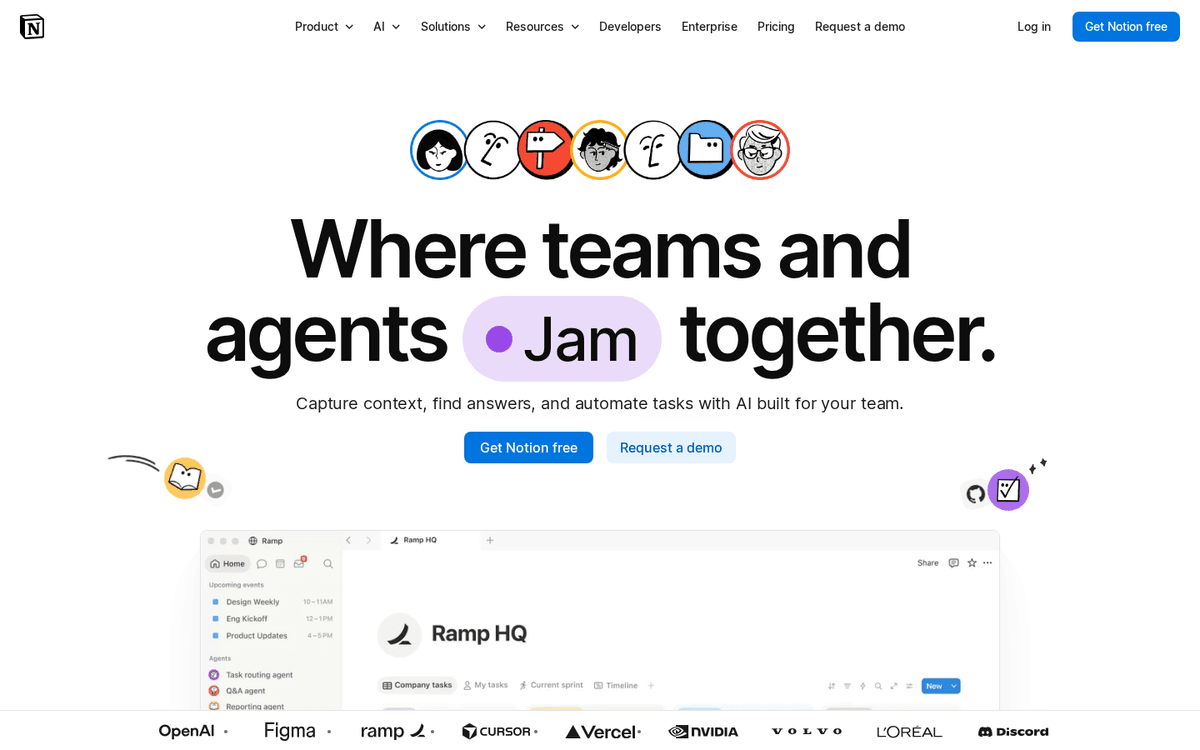
If your design docs, specs and system guidelines live in Notion, this is near-free leverage on writing you already have to do. Its AI summarises long pages, drafts in place, and answers questions across the workspace so you stop hunting for that rationale from three sprints ago. Don’t adopt Notion for the AI, but if your team is already there, switch it on before buying anything new — the same “turn on the AI you already own” logic runs through our product managers roundup, since designers and PMs often share the same docs. Pair it with a general assistant for the heavier drafting.Pros
- AI drafts and summarises inside the docs your team already keeps
- Q&A across the workspace surfaces decisions you half-remember
- Low adoption cost if design specs already live in Notion
Cons
- Weaker as a standalone reasoning engine than ChatGPT or Claude
- Full AI now sits on the higher-priced Business tier
/assets/screenshots/notion.png Which should a designer buy first?
Work in layers rather than buying the whole list.
Layer one, this week. If you design interfaces, Figma is the tool, and its AI is already bundled into seats you likely have — turn it on and use it daily. Add one general assistant, ChatGPT or Claude, for the briefs, UX copy and rationale that live outside the canvas. That is at most one new subscription on top of Figma, and it covers the majority of the leverage.
Layer two, when a job gets heavy. Add exactly one specialist for whichever deliverable is currently eating your week. Doing a lot of visual direction and concept work, trial Midjourney. Churning out brand and marketing assets, lean on Canva. Presenting constantly, add Gamma. Resist buying all three “to be safe” — you will pay for three and master none.
Layer three, the cheap wins. If your design docs already live in Notion, switch its AI on rather than treating documentation as a separate tool to buy. Documentation is the quietest time sink in design, and closing it inside a tool you already use is the least glamorous but most reliable win here.
The mistake to avoid is buying by category instead of by pain. An image generator you touch twice a quarter or a deck tool you open once a month is just another tab and another invoice.
FAQ
What is the single best AI tool for a designer?
For most product and UI designers it’s Figma with its AI features turned on, because the assistance lives inside the canvas where the work already happens — first-draft layouts, layer cleanup, content fills and search. A general assistant like ChatGPT or Claude is the strongest second pick, since it handles the briefs, UX copy and rationale that design tools don’t touch. Between those two you have covered most of a designer’s week.
Can AI actually design a finished UI for me?
Not reliably, no. AI is genuinely good at first drafts, variations and production busywork, and genuinely weak at hierarchy, taste and knowing which option is actually right for the problem. Figma’s AI can rough out a layout and an image model can explore a direction, but both produce starting points you refine, not finished screens you ship. Keep your judgement in the loop; that judgement is the part of the job that AI does not replace.
Do I need to pay, or is the free tier enough?
Often the free tier is plenty to start. Figma’s free plan includes a daily AI-credit allowance, and free ChatGPT and Claude handle most everyday writing and rationale. Pay when you hit a real limit — usually more collaboration seats, longer context, higher-quality image generation, or a specialist deliverable like polished decks. Midjourney is the main exception here, as it has no free tier to test with.
Are these prices accurate?
They’re a rough July 2026 snapshot, quoted per user before annual discounts and enterprise deals. AI pricing shifts constantly, and features are increasingly bundled into seats you already pay for — Figma’s AI credits and Notion moving full AI into its Business tier are recent examples. Always confirm the current figure on the vendor’s own site, and check whether the AI you need is already included in a plan you have.
Should I use Midjourney or Canva for images?
They solve different jobs. Midjourney is for original concept imagery, moodboards and art direction where visual range and quality matter, and it has a real learning curve and no free tier. Canva is for fast, on-brand production assets built from templates, with lighter AI image generation baked in. Many designers use Midjourney to explore a direction and Canva or Figma to turn the chosen look into a usable, on-brand deliverable.
Will AI tools replace designers?
No. These tools remove mechanical parts of the job — renaming layers, drafting copy, formatting decks, exploring variations — so you spend more time on the parts that actually differentiate you: hierarchy, systems thinking, art direction and persuading a room. The skill that matters more now is directing the tools well and having the taste to reject what they get wrong, which is exactly where a designer earns their keep.