Automation How-Tos
How to Automate Invoicing
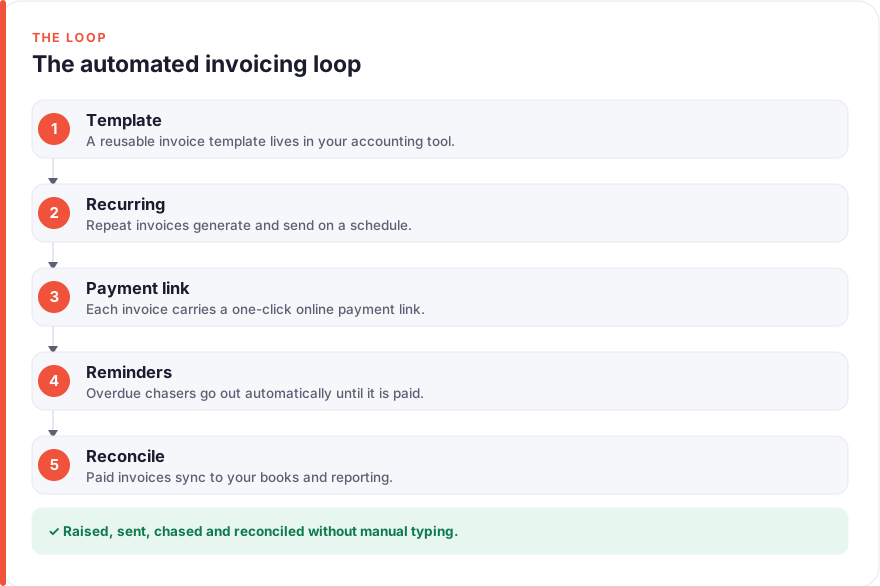
The short answer: Automate invoicing by picking one home for it, usually your accounting platform like QuickBooks or Xero, or a payment tool like Stripe or PayPal. Build a branded, reusable template, then set regular clients up as recurring invoices that send themselves. Add a one-click payment link so clients pay online, switch on automated reminders so overdue invoices chase themselves, and let paid invoices reconcile against your bank feed. Automate the sending and the chasing; keep a human eye on what goes out and to whom.
Invoicing is the part of running a business that most directly controls whether you get paid, and it is also one of the easiest things to let slip. An invoice raised a week late is a week later getting paid; a reminder never sent is money that quietly ages into a bad debt. Done by hand, each invoice is a small chore of copying figures, formatting a document, attaching it to an email and then remembering, days later, to chase it.
Almost none of that needs to be manual. Modern invoicing tools were built to generate documents from a template, send them on a schedule, collect payment through a link and nudge late payers without you lifting a finger. This guide walks through building that flow one step at a time, and it stays deliberately focused on the invoicing loop itself. If you want the wider bookkeeping picture, our companion guide on how to automate accounting covers bank feeds, receipts, payroll and reporting.
Before you start
Two decisions make everything below smoother. First, settle on where invoicing will live before you automate anything, because splitting it across several tools is how duplicate invoices and mismatched records begin. Second, get your basics in one place: your logo, your standard payment terms (net 14, net 30, or on receipt), your tax registration details, and a short list of the clients or services you bill most often.
It also helps to be clear about the boundary between automating the routine and keeping judgement human. Sending, formatting and chasing are safe to hand to software. Deciding what to bill, when to pause a chase for a sensitive client, and whether a disputed line is correct are not. Automating invoicing well is really about removing the repetitive typing so your attention goes to the few moments that actually need it. It is one of the higher-value repetitive tasks worth automating precisely because the routine part is so mechanical.
Step 1: Choose where your invoices will live
Everything else depends on this choice, so make it first. There are two broad routes, and the right one depends on how your money already moves.
If you keep proper books, run invoicing inside your accounting platform. QuickBooks Online and Xero both create, send, track and reconcile invoices natively, which means a paid invoice updates your accounts without a second system to sync. As a rough, July 2026 snapshot, QuickBooks Online’s entry Simple Start plan runs around $38 a month and Xero’s entry Early plan around $25 a month, though both change their pricing periodically and run introductory discounts, so check the vendor for the current figure. We have no affiliate relationship with either; see our disclosure for how we handle tool mentions.
If your billing is simpler, or you mostly take card and online payments, a payment tool may be enough on its own. Stripe and PayPal both send invoices and collect payment through the same platform, which suits freelancers and product businesses that do not need full double-entry books yet. The trade-off is that you will still need to get that data into your accounts eventually.
The deciding question is where your payments already reconcile. Choose the tool your bookkeeping flows through, so that a paid invoice is one event in one system rather than something you record twice.
Step 2: Build a reusable invoice template
Automation lives or dies on the template. A well-built template is what turns every future invoice into a two-click job, because all the standing detail is already there and only the specifics change.
Set it up once with everything that stays constant: your business name and logo, your address and tax registration number, your payment terms, your bank or payment details, and the tax treatment for your typical line items. Add your standard products or services as saved items so they drop in with the correct description and rate rather than being retyped. Getting the tax handling right here matters, because an error baked into the template repeats on every invoice until someone notices.
A clean template also does quiet work on getting you paid. Clear terms, a visible due date and an obvious way to pay reduce the “how do I actually settle this?” friction that delays payment. You are removing excuses before the invoice even goes out.
Step 3: Automate recurring and repeat invoices
With a template in place, the sending itself can run on its own. Split your billing into two patterns.
For anything you charge on a regular cycle, a retainer, a subscription, a monthly service, set up a recurring invoice. You define the client, the amount and the schedule once, and the software generates and sends each invoice automatically on the right day, whether that is weekly, monthly or quarterly. This is the single biggest time saver in invoicing, because regular billing is both the most repetitive and the most likely to slip when you are busy.
For repeat one-off work that varies in amount, you will not want full automation, but you can still avoid a blank page. Duplicating a previous invoice, or generating one from a saved template, means each new invoice starts as an edit rather than a rebuild. Some tools also let you raise an invoice automatically when a project is marked complete or an order comes in, which is worth setting up if your work has a clear trigger.
Step 4: Add online payment links
The fastest way to get paid sooner is to make paying effortless. Add an online payment link to every invoice so the client can settle it in a couple of clicks straight from the email, rather than logging into their bank to set up a manual transfer.
This is where Stripe and PayPal earn their place even if your books live in QuickBooks or Xero, because both accounting platforms integrate with them to add a pay-now button to invoices. Pricing is per transaction rather than a subscription. As a July 2026 snapshot, Stripe’s standard US card rate is roughly 2.9% plus 30 cents per successful payment, with its invoicing feature adding a small percentage on top; PayPal’s standard online rate for goods and services sits around 3.49% plus 49 cents per transaction. Both vary by country, payment method and product, and both change over time, so treat these as ballpark and check the vendor for your exact rate. Bank-transfer and direct-debit options are usually cheaper than cards if your clients will use them.
Weigh the processing fee against what it buys you. A percentage on each payment is a real cost, but being paid in days instead of weeks, with no manual bank reconciliation to chase, is usually worth it, especially on invoices that would otherwise drift overdue.
Step 5: Turn on automated payment reminders
Chasing late payment is the most disliked job in invoicing, and it is entirely automatable. Every serious invoicing tool can send automated reminders on a schedule you set: a gentle nudge a few days before the due date, one on the day, and firmer follow-ups at intervals after.
Set the cadence once and let it run. The software watches each invoice’s status and only chases the ones that are actually unpaid, stopping the moment a payment lands. That alone removes the two failure modes of manual chasing: forgetting to follow up, and the awkwardness of doing it. A polite, automatic, on-time reminder is also more consistent than a human who chases some clients and lets others slide.
The tone of these reminders is worth getting right once. Keep them short, factual and friendly, restate the invoice number and amount, and always include the payment link so acting on the reminder is as easy as reading it.
Step 6: Hand off to reconciliation and reporting
The last step closes the loop between a paid invoice and your books. When an invoice is settled through its payment link, the payment should match against your bank feed and mark the invoice as paid automatically, so your records stay current without manual reconciliation. If invoicing lives inside QuickBooks or Xero, this happens natively; if you invoice through a separate payment tool, this is the point where that data needs to reach your accounts.
From there, your invoicing data feeds the numbers that actually tell you how the business is doing: an aged debtors list showing who owes you and how overdue they are, and your income and cash-flow reports. Schedule these to arrive in your inbox on a fixed day so you review them rather than dig for them.
This handoff is also where invoicing connects to the rest of your pipeline. Smoother cash collection only helps if new work keeps arriving to bill, so it pairs naturally with a healthy front end; our guide on how to automate lead generation covers keeping that side fed.
Common pitfalls to avoid
A few mistakes turn automated invoicing from a time-saver into a mess, and all of them are avoidable.
The most common is automating a bad template. Because automation repeats whatever you give it, an error in your tax treatment, terms or bank details is copied onto every invoice until a client points it out. Test your template by sending a real invoice to yourself and paying it before you switch on recurring runs.
The second is going fully hands-off on reminders. Letting a “final notice” fire at an important client over a payment that is already in progress, or a genuine dispute, costs more goodwill than the automation saves. Keep a light human check on the firmer end of the chase sequence.
The third is duplicate records from running two disconnected systems, typically invoicing in a payment tool while keeping books elsewhere, without a link between them. You end up reconciling the same payment twice and, sometimes, sending the same invoice twice. Decide on one home for invoicing, as in Step 1, and make everything else feed it.
Finally, resist automating the decision of what to bill. Automation is superb at generating, sending and chasing an invoice you have decided is correct; it is not a substitute for checking that the amount and the work match before it goes out.
FAQ
What is the difference between automating invoicing and automating accounting?
Invoicing automation covers the specific loop of creating, sending, collecting and chasing invoices: templates, recurring bills, payment links and reminders. Accounting automation is broader, taking in bank feeds, receipt capture, payroll, tax and reporting for your whole set of books. Invoicing is one part of that larger system. Many businesses automate invoicing first because it has the most direct effect on cash flow, then extend into full bookkeeping. Our accounting automation guide covers the wider setup.
Do I need separate tools, or can one platform do everything?
Often one platform is enough. QuickBooks Online and Xero both handle invoicing, payment collection (via a Stripe or PayPal connection) and reconciliation in one place, which is the simplest setup if you keep proper books. If your needs are lighter, Stripe or PayPal can create and collect invoices on their own without a full accounting tool. The main thing to avoid is running two disconnected systems that both hold invoice data, since that creates duplicates and double reconciliation.
How much does automated invoicing cost?
It depends on your route. Accounting platforms charge a monthly subscription, roughly $25 to $40 a month for entry plans as a July 2026 snapshot, while payment tools like Stripe and PayPal charge a percentage per transaction rather than a flat fee, in the region of 2.9% to 3.5% plus a small fixed amount. All of these change periodically and vary by region and plan, so check the vendor for current figures. Weigh the cost against being paid faster and reclaiming the hours spent raising and chasing invoices by hand.
Is it safe to send invoices automatically without checking them?
Recurring invoices for a fixed retainer are safe to send automatically once the template is correct, because nothing changes between runs. Variable or one-off invoices are best reviewed before they go, since the amount depends on work that only you can confirm. The reliable rule is to automate the sending of anything whose value is fixed and predictable, and to keep a human check on anything whose amount you had to decide. Test any recurring setup with a real invoice first.
How do automated payment reminders avoid annoying good clients?
By staying polite, well-timed and supervised. Set a reasonable cadence rather than daily nagging, keep the wording friendly and factual, and always include the payment link so acting is easy. The important safeguard is to keep a human eye on the firmer reminders and pause the sequence for clients who are mid-negotiation or have raised a genuine dispute. Used this way, automated reminders are more consistent and less awkward than manual chasing, not more aggressive.
How long does it take to set up automated invoicing?
The core setup, choosing your tool, building a template and sending your first invoice with a payment link, takes an afternoon. Adding recurring schedules for regular clients and configuring reminder cadences is another short session. Most of the ongoing refinement happens in the first few weeks as you tune the wording and timing against how clients actually respond. Build it incrementally, starting with a template and one recurring client, rather than trying to automate everything at once. If you would like to know more about how we test and write these guides, see our about page.