Automation How-Tos
How to Automate Meeting Notes
The short answer: To automate meeting notes, connect an AI notetaker like Otter.ai or Fathom to your calendar so it records and transcribes every call automatically. Let it generate a summary and pull out action items and decisions, then route those notes into a workspace like Notion and your tasks into a task manager, using a native integration or Zapier. Keep a human in the loop to skim each summary, correct mistranscribed names and numbers, and decide which meetings are worth recording at all.
Meeting notes are the classic job nobody wants. Someone has to half-listen while typing, then clean it all up afterwards, then chase people about who agreed to do what. The notes that do get written are often patchy, and the ones that do not get written mean decisions quietly evaporate the moment the call ends.
The encouraging part is that this whole chain, from recording to a tidy list of next steps, now runs with very little human effort. AI notetakers join your calls, transcribe them accurately, summarise the discussion, and extract the follow-ups, and a light automation layer can drop all of it into the tools your team already uses. This guide walks through that pipeline one stage at a time, honestly, including where it still needs you.
Before you start
You need three things in place: somewhere your meetings happen (Zoom, Google Meet, Microsoft Teams, or in-person), an AI notetaker to capture and process them, and a destination where the notes should live, such as Notion, a shared drive, or your CRM. It also helps to know your own habit: do you want a visible bot that joins the call, or a quiet recorder that works in the background? That single preference narrows the tool choice more than any feature list.
One more thing worth settling up front is consent. Recording a conversation carries legal and courtesy obligations that vary by country and even by state, so before you automate anything, decide how you will tell participants a meeting is being recorded. We come back to this below, because it is the part most people skip.
Step 1: Pick your meeting notetaker
The notetaker is the engine of the whole system, so choose it first. The main contenders all record, transcribe, summarise, and extract action items; the differences are in how they join your calls, what they cost, and how they hand data onward.
- Otter.ai is a strong all-rounder with live transcription, speaker labels, and an assistant you can ask questions about past meetings. It suits people who want a searchable archive of everything said, not just a summary. Pricing is roughly a free Basic tier, a Pro plan around $16.99 per user each month, and a Business plan around $30 per user each month (July 2026 — check the vendor, and note annual billing lowers these).
- Fathom leans toward a clean, fast summary and a generous free plan, with unlimited recording but a cap on AI summaries at the free level. Its paid Premium plan runs roughly $20 per user each month (July 2026 — check the vendor). It is a good fit if you mainly want crisp recaps and action items rather than a full transcript workflow.
Both connect to the big video platforms and both can push data into other tools, which matters for the routing step later. If you are choosing tools across your whole stack, our roundup of AI tools for executive assistants covers notetakers alongside the scheduling and inbox tools they sit next to.
Step 2: Connect it to your calendar
The single most common reason meeting notes fail is that someone forgot to press record. Calendar integration removes that failure entirely. When you connect your notetaker to Google Calendar or Outlook, it reads your schedule and joins each meeting automatically, so capture stops depending on anyone remembering.
Setup is a one-time authorisation: you grant the tool read access to your calendar, and optionally let it add itself to meetings with a video link. From then on, most notetakers give you controls over which meetings to record, for instance only meetings you host, only external calls, or only events with more than one guest. Set these deliberately, because “record everything” quickly captures one-to-ones and personal calls you never meant to keep.
This is the moment to build consent into the workflow rather than bolt it on later. If your notetaker sends a bot that appears in the participant list, its presence is itself a notice. If it records quietly, add a line to your meeting invites saying the call will be recorded and summarised, and give people a way to opt out. It is both the decent thing to do and, in many places, the lawful one.
Step 3: Auto-transcribe and summarise
With the recording captured, the notetaker turns audio into two things: a full transcript and a shorter summary. The transcript is the raw searchable record, usually with speaker labels and timestamps so you can jump to the moment someone said a particular thing. The summary is the part most people actually read: a condensed account of what the meeting covered.
The quality of that summary depends on settings you can shape. Most tools let you choose the summary style or template, so a sales call might be summarised into needs, objections, and next steps, while an internal planning meeting is summarised into topics and decisions. Spend a few minutes on these templates early, because a summary aimed at the wrong shape of meeting reads like it missed the point.
Accuracy is genuinely good now but not perfect, and it degrades in predictable ways: heavy accents, cross-talk, unusual product or person names, and poor audio all raise the error rate. Treat the transcript as very reliable and the summary as a strong first draft, which is exactly the split the review step at the end is built around.
Step 4: Extract action items and decisions
A summary tells you what was discussed; action items tell you what happens next, and this is where automated notes earn their keep. Modern notetakers scan the conversation for commitments and pull out a structured list: the task, who owns it, and often a due date, alongside the key decisions the group reached.
This extraction is what separates a passive archive from a working system. A transcript nobody revisits changes nothing, but a clean list of “Priya to send the revised quote by Thursday” and “we agreed to delay the launch to Q4” is the difference between a meeting that moves work forward and one that just happened. It is especially valuable for anyone coordinating across teams; our guide to AI tools for product managers looks at how these extracted items feed roadmaps and standups.
Extraction is also the least perfect step, because judging intent is harder than transcribing words. The AI may log a casual “I could maybe look at that” as a firm commitment, or miss an action buried in a tangent. That is fine, as long as the extracted list is treated as a draft a human confirms rather than an instruction that fires automatically. Keep that check in place and this step saves real time; remove it and you risk automating a misunderstanding.
Step 5: Route notes and tasks to your tools
Notes are only useful where people will see them, so the final build sends everything to the tools your team already lives in. This has two halves: the summary goes to a knowledge home, and the action items go to a task system.
For the knowledge home, Notion is a natural fit, with a database of meetings where each new entry holds the date, attendees, summary, and a link to the recording. Otter.ai and Fathom both offer integrations that can create this record automatically, and Notion itself is roughly free for personal use, with a Plus plan around $12 per seat each month and Business around $24 per seat each month (July 2026 — check the vendor; annual billing is lower). For the action items, push each one into wherever your team tracks work, whether that is a dedicated task manager, a project board, or a shared list.
When a native integration between two tools does not exist, Zapier is the connective tissue. It listens for a new meeting summary and performs the follow-on steps: create the Notion page, add each action item as a task, post a recap to the relevant Slack or Teams channel. Zapier runs a free tier for light use and paid plans from roughly $19.99 each month (July 2026 — check the vendor). If the trigger-and-action pattern behind this is new to you, our guide on how to automate repetitive tasks covers it from the ground up.
Step 6: Review, edit, and keep it accurate
Automated notes are set-and-check, not set-and-forget. The pipeline now captures, summarises, extracts, and routes on its own, but a two-minute human pass is what keeps it trustworthy, and skipping that pass is how confidently wrong notes end up in the record.
- Skim before it circulates. Read the summary and action list once before it goes to the wider team. You are looking for the AI’s blind spots: a misheard name, a wrong number, a commitment logged against the wrong person.
- Fix the predictable errors. Product names, acronyms, and unusual surnames are where transcription slips most. Correcting them takes seconds and stops the same mistake propagating into tasks and search.
- Prune what gets recorded. Not every meeting deserves a permanent transcript. Revisit your calendar rules occasionally and stop recording the calls that never needed it, both to cut noise and to respect the people in them.
- Watch the integrations. As with any automation, a renamed field or an expired connection can quietly break the routing. Glance at whether notes are still arriving where they should, especially after any tool updates.
Putting it together
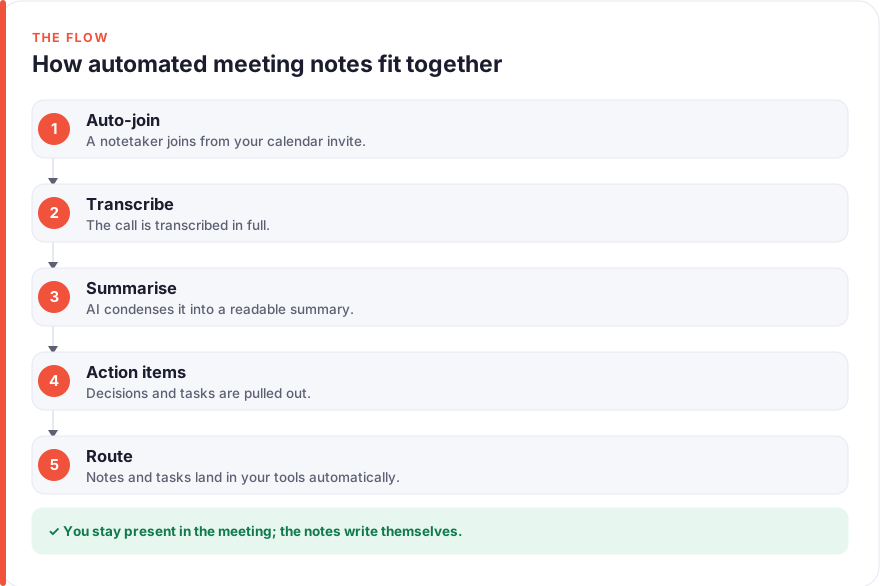
The full flow reads as a single loop: an AI notetaker joins your calendar meetings automatically, transcribes and summarises each one, extracts the action items and decisions, and routes the summary to Notion and the tasks to your task manager, with a quick human review keeping the whole thing honest. Every stage hands off to the next without manual typing.
Start small. Get one notetaker recording and summarising reliably first, so no meeting is ever lost, then add routing to Notion, then task extraction, one piece at a time. Each part is useful on its own, and building incrementally means you always understand what your system is doing and can trust its output. To see how we test the tools we recommend, and why we have no affiliate relationships with any of them, see our disclosure and about pages.
FAQ
What is the best tool to automate meeting notes?
There is no single best tool, only the best fit for how you meet. Otter.ai suits people who want a searchable transcript archive and an assistant they can query about past meetings; Fathom suits people who mainly want fast, clean summaries and action items with a generous free plan. Both record, transcribe, summarise, and integrate with other tools, so try the free tiers of each against your own meetings before committing. Pricing shifts, so check the vendor’s current plans rather than relying on figures in any guide.
Are AI meeting notes accurate?
Transcription is highly accurate for clear audio and standard speech, and noticeably less so with heavy accents, cross-talk, poor microphones, or unusual product and person names. Summaries and extracted action items are a strong first draft rather than a finished record, because judging what someone meant is harder than capturing what they said. The practical answer is to trust the transcript, treat the summary and action list as drafts, and keep a quick human review before anything circulates.
Is it legal to record and automate meeting notes?
It depends on where you and the participants are. Some jurisdictions require only one party to consent to a recording, while others require everyone on the call to agree, and the rules can differ by country and even by region. The safe approach is to always disclose that a meeting is being recorded and summarised, whether through a visible notetaker bot, a line in the calendar invite, or a spoken note at the start, and to give people a way to opt out. When in doubt, check the rules that apply to you rather than assuming.
How much does it cost to automate meeting notes?
You can start for free. Both Otter.ai and Fathom offer free tiers, and Notion and Zapier both have free plans that cover light use, so a small team can run a basic pipeline at no cost. Costs rise with volume and features: paid notetaker plans run very roughly $16 to $30 per user each month, Notion’s paid tiers start around $12 per seat, and Zapier’s paid plans start near $20 each month (all July 2026 — check the vendor). Begin on free tiers, confirm the system delivers value, then upgrade only the pieces that become bottlenecks.
Can automated notes push action items into my task manager?
Yes, and this is where the setup pays off most. Your notetaker extracts the action items, and either a native integration or an automation layer like Zapier turns each one into a task in your chosen tool, complete with owner and due date where the AI captured them. Keep a human confirming the list first, since extraction can occasionally log a casual remark as a firm commitment or miss one buried in a tangent. Reviewed and routed, though, these items are what turn a meeting recording into work that actually moves.
Do I still need to attend meetings if AI takes the notes?
Automating the notes changes your job in the meeting, not whether you show up. Freed from typing, you can actually listen, contribute, and think, which is the whole point of being there. For occasional conflicts the summary and recording let you catch up on a meeting you genuinely could not join, but that is a fallback rather than a reason to skip meetings wholesale. The goal is better attention during the conversation, not absence from it.